Buttons


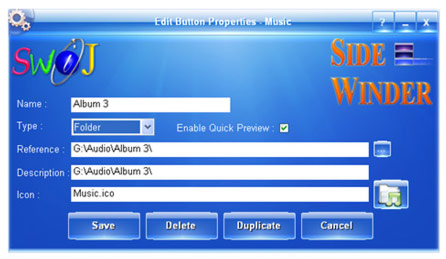
Right Click on a launch Button to open its Property Editor window.

Button Name

Enter or change the Name for the launch Button here. You must specify a name for the Button in order to save its properties. The length of the Button Name cannot be more than 30 characters. You can create Line Breaks in the Button Name by typing a pipe "|" symbol in between the lines.

Button Type

Choose the Type of function the Button should perform from this drop down combo box. You can choose  "Executable" if your target reference is an Application or Shortcut which has one of the extensions such as ".exe", ".com", ".bat", ".msi", ".lnk", ".scf", etc. Select the "File" option if your reference is a file is an Office Document, Music, Video, Picture, etc. Choose the "Folder" option if your target reference is a Folder, Network Folder, Drive, or even a Removable Media. Select the "Text" option if you're going to enter a Text reference as the target. And finally select the "URL" option if your target reference is a Hyperlink or Internet Shortcut (*.url). Please always remember to choose the Button Type first before you fill the other fields below.

Button Reference

Enter a target reference for the launch button if you know the exact location of it or click the select button to choose the correct target location. If you leave this field empty then the Button will perform nothing. Below are some examples for the target reference. When adding a Text-Snippet to a Launch Button, type '|' to create a line break / perform Enter operation, type '>>>' to perform a forward TAB and type '<<<' to perform a backward TAB on the target window.

Executable: "C:\Program Files\Microsoft Games\Chess\Chess.exe"

File: "C:\Users\Public\Pictures\Sample Pictures\Tulips.jpg"

Folder: "C:\Program Files"

Text: "Hi! You're Using SWiJ SideWinder."

URL: "http://www.google.com"


Button Description

Enter a description for the launch Button which will appear as the Tooltip when you bring the Mouse over the Button. If you leave this blank no Tooltip will appear.

Button Icon

Click the Icon button to select an Icon for the launch Button or enter the full path of the Icon file here. You may choose not to have an Icon for a launch Button.

Save Properties

Click the Save button to save all the changes you have made to the launch Button into its relevant Category File. If you do not wish to save any changes then please click the Cancel button to exit the Editor without any changes to the Button.

Delete Button

Click this button to delete the current launch Button from the Category Slot and to remove its entries from the relevant Category File. Please remember the changes are permanent if you use the Delete button.

Duplicate Button

Click the Duplicate button to make a duplicate of the current launch Button contents, and to edit them easily as a new Button. Until you press the Save button nothing will be done to the Category and if you press Save, then the new Button will appear as the last launch Button in that Category Slot.

Cancel Changes

Press Cancel if you do not want to save the changes you have made to the launch Button. This doesn't apply if you already have used the Delete button.

Enable Quick Preview

Select this option to get a quick preview of the files in the Folder, where the Button is pointing at (The Button Type should be a Folder) or to get a quick preview of a Text Snippet.  A Preview Window will appear when the mouse comes over a launch Button. You can also launch the files inside the folder by clicking the Preview Buttons.

Instant Picture Preview

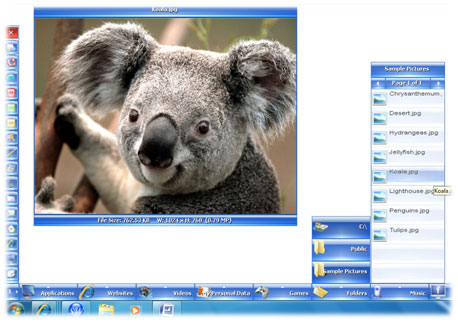
When you bring the Mouse over a Picture File in the Folder Preview, an Instant Preview of the Picture will be shown on the empty space of the Screen. Larger the empty space of the Screen the larger the Picture Preview window. The Preview window will show the Picture File Name, File Size, Width and Height of the Image, and the Mega Pixel amount of the Photo if it is greater than 0.1 MP.  The Picture Preview supports all major Image Formats such as BMP, JPG, GIF, PNG, TIF, TGA, WMF, EMF, ICO and CUR.

Double Click on the Caption Bar on the top or the Info Bar at the bottom to close the Preview window, and drag the window by holding the Mouse down on them. To view the Picture in Full Screen, Double Click on the Preview Area or bring the Mouse over the Preview Area and press 'Alt' + 'Enter' keys. You can always switch back to the Miniature View from the Full Screen View by doing the same.

When the Mouse is over the Preview Area you can use the Mouse Wheel to view the Pictures one by one or use the 'Up' and 'Down' keys to go to the previous or next image in the Preview Folder.
Instant Audio Preview

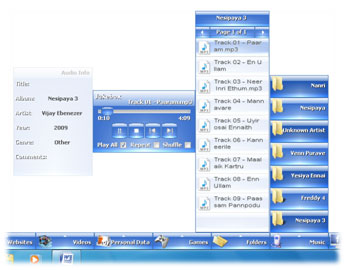
When you bring the Mouse over an Audio File the SideWinder will display the built-in Jukebox and starts to play the music immediately without any clicks. The Jukebox is a fully fledged music player where you can play all files in the folder one by one, repeat a single file or the entire list, shuffle the playlist and play one by one according to the selections you make with the checkboxes. The Play/Pause, Stop, Previous and Next buttons are there to provide the standard control over the playlist. You can also use the 'Space Bar' to Play/Pause, the 'Up' and 'Down' keys to increase or reduce the Volume, the 'Left' and 'Right' keys to Rewind or Forward the current Audio File and the 'PageUp' and 'PageDown' keys to go to the Previous and Next file in the playlist while the Mouse is over the Player. Also you can use the Mouse Wheel to adjust the Volume and drag the Nob using the Mouse to seek a position in the timeline. The Jukebox can be placed anywhere on the Screen by dragging the player using the Mouse. When you click on the player it will stay on top of all other running applications, and to hide Double Click on the player's Title Bar or on any vacant area. If you bring the Mouse over the Previous and Next buttons it will show the Folder Preview window right next to the player and you can change the Pages by pressing 'Up' and 'Down' keys or the Mouse Wheel, and select any other Items in the Folder.

The SideWinder is capable of displaying the ID3 Tag Information of the MP3 files and the Meta Data of the WMA files when the Mouse is over the specific Audio File. The player supports a wide range of Audio Formats when a Free Codec Pack like the K-Lite Codec Pack is installed on your computer.  When K-Lite Codec Pack Version 5.8.3 or above is properly installed on your Windows then you're able to play mp3, ogg, oga, mka, m4a, aac, flac, wv, mpc, ape, apl, alac, tta, ac3, dts, amr, ra, m3u, pls, mp2, mp1, mid, midi, wav, wave & wma Audio Formats using the SideWinder's Jukebox.

You may download the latest K-Lite Codec Pack from the following website.

http://www.free-codecs.com/download/K_lite_codec_pack.htm

Instant Video Preview

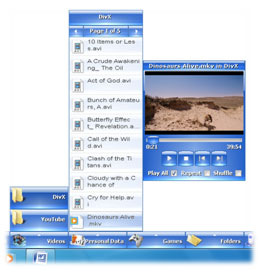
When you bring the Mouse over a Video File the SideWinder will display the built-in Video Player and starts to play the video immediately without any further interactions. Like the Jukebox the Video Player also has all necessary features to maintain a playlist of videos and the buttons necessary to control the video playback. You can play all files in the folder one by one, repeat a single file or the entire list, shuffle the playlist and play one by one according to the selections you make with the checkboxes. The Play/Pause, Stop, Previous and Next buttons are there to provide the standard control over the playlist. You can also use the 'Space Bar' to Play/Pause, the 'Up' and 'Down' keys to increase or reduce the Volume, the 'Left' and 'Right' keys to Rewind or Forward the current Audio File and the 'PageUp' and 'PageDown' keys to go to the Previous and Next file in the playlist while the Mouse is over the Player or the Video Screen. Also you can use the Mouse Wheel to adjust the Volume and drag the Nob using the Mouse to seek a position in the timeline. The Video Player can be placed anywhere on the Screen by dragging it using the Mouse. When you click on the player it will stay on top of all other running applications, and to hide Double Click on the player's Title Bar or on any vacant area. If you bring the Mouse over the Previous and Next buttons it will show the Folder Preview window right next to the player and you can change the Pages by pressing 'Up' and 'Down' keys or the Mouse Wheel, and select any other Items in the Folder.

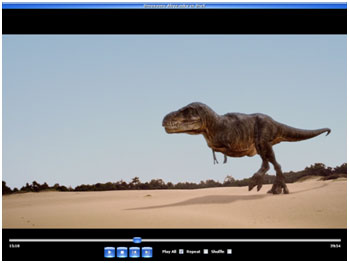
To view the video in Full Screen, Double Click on the Video Screen or press 'Alt' + 'Enter' keys together while the Mouse is over the player. The same way you can switch back to the Mini-View, from the Full Screen View. While playing in Full Screen, the Mouse Pointer will be hidden and no buttons will be shown unless you bring the Mouse to the bottom of the Screen.

The player supports a wide range of Video Formats when a Free Codec Pack such as the K-Lite Codec Pack is installed on your computer.  When K-Lite Codec Pack Version 5.8.3 or above is properly installed then you're able to play avi, divx, mkv, mp4, m4v, mp4v, mpv4, ogm, ogv, flv, mpeg, mpg, mp2v, mpv2, m1v, m2v, m2p, mpe, ts, m2ts, mts, m2t, tps, hdmov, mov, 3gp, 3gpp, wmv, asf, vob, mpls, rm, rmvb, asx, dvr-ms & dat Video Formats using the SideWinder's Video Player.

You may download the latest K-Lite Codec Pack from the following website.

http://www.free-codecs.com/download/K_lite_codec_pack.htm

Quick Folder Preview

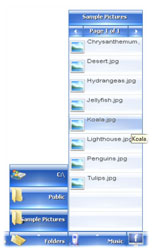
The Quick Folder Preview window will open when you bring the Mouse over the launch Button and wait for a while, which will display the Files inside that Folder as 10 Items per Page. You can change the Page number by pressing 'Up' or 'Down' keys, clicking on the Next & Previous Buttons at the Top or using your Mouse Wheel when over the launch Button or the Top Panel. Click on an Item to open it using its default associated Program or Right Click to open the "Open With" system window where you can choose a suitable Application installed on your computer to open the file.

You can drag the Folder Preview window anywhere on the screen by holding the Mouse down on the Title Bar, and close the window by Double Clicking on it. If you Double Click on the Page Number Bar, it will open the current Folder in Windows Explorer.
Quick Text Preview

If you have selected the 'Enable Quick Preview' option for a Text type launch Button then, when you bring the Mouse over the Button the SideWinder will show a quick preview of the stored Text Snippet.