Drag & Drop
Drop on a Category Slot
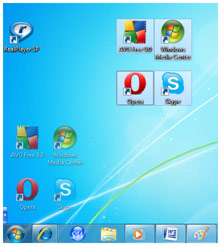
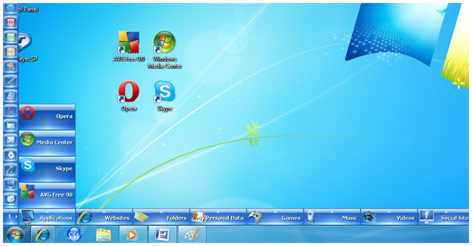
You can drag one or more items from your Desktop or Explorer and drop onto any of the SideWinder Category Slots and they will be automatically stored as launch Buttons. You can have up to 150 launch Buttons per each Category in 10 sub pages (The Demo Version has a limit of only 15 Buttons in 1 sub page). When you drag the items over the Nip, the SideWinder will expand and reveal the Category Slots for you to drop the items as you like. (Note: If you're unable to add certain items directly to the SideWinder, then please create a Shortcut of those and drag & drop the Shortcuts instead of the original item.) You can also drag & drop Texts and URLs from other Applications.
Drop on Edit Button Properties Windows
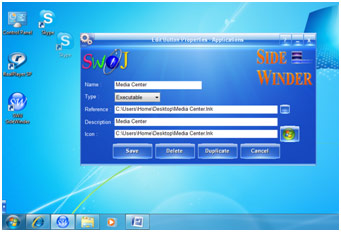
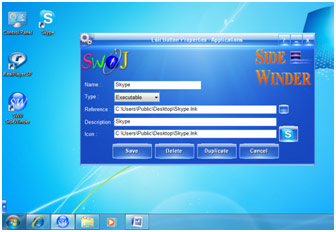
You can also drag and drop a Single Item from the Desktop or the Explorer, onto the Edit Button Properties Window, and it will automatically show the item's details in the relevant fields. This way you can edit or save the properties for each item.