Pluck Buttons
Pluck to Same Category
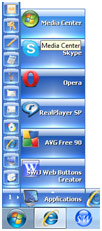
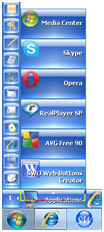
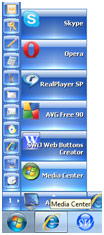
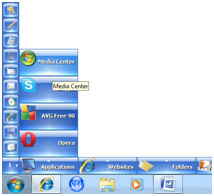
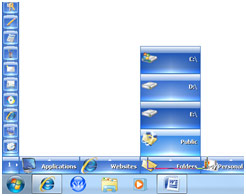
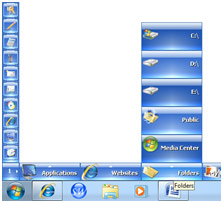
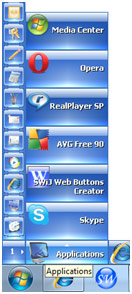
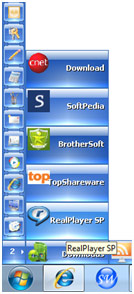
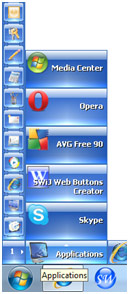
You can remove a particular launch Button from its Category Slot and place it at the end of the order in the same Category by the following way. First drag the source Button using the Left Mouse and bring it over its Category Slot. Then drop the Button by releasing the Mouse over the Slot. Now the source Button will be plucked from its original location and will be placed as the last Button of that Category.
Pluck to Different Category in Same Page
You can remove a particular launch Button from one Category and place it on another Category by the following way. First drag the source Button using the Left Mouse and bring it over your target Category and then release the Mouse there. The source Button will be removed from its original Category Slot and will be placed onto the target Category Slot as its last Button.
Pluck to Different Category in Different Page
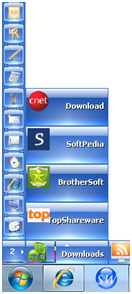
You can also Pluck one launch Button from a particular Category and place it on a target Category Slot which is in another main page. To do that first drag the source Button and bring it over the Nip and hold it there for a short while. The SideWinder will start to cycle through available main pages and you can leave the Nip when your target main page has arrived. Now bring the Mouse over the target Category Slot and release it. The source Button will be plucked from its original Category and will be placed at the target Category Slot as its last Button.