Enable Sounds
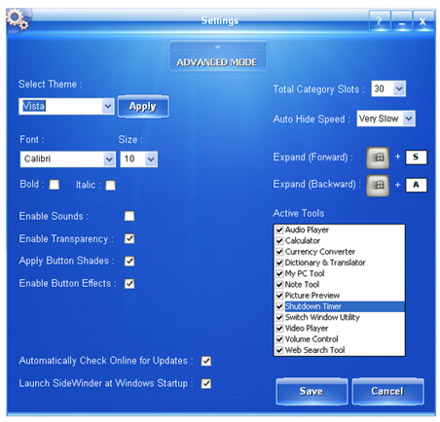
Enable or disable the Button sounds using this check box. The change will be made to the SideWinder only after pressing the Save button.
Enable Transparency
Enable or disable the transparency of the SideWinder Buttons using this check box. The change will be made to the SideWinder only after pressing the Save button.
Apply Button Shades
Un-Check this option if you wish to maintain a single shaded launch Buttons on each Category. The change will be made to the SideWinder only after pressing the Save button.
Enable Button Effects
Enable or disable Button animation effect by using this check box. If you feel that you need more speed with the SideWinder, then un-check this option to turn off the animations. The change will be made to the SideWinder only after pressing the Save button.
Automatically Check Online for Updates
Un-check this option if you do not want the SideWinder to automatically check online for any latest updated version exists. If you check this then you will be notified to download the update when the SideWinder starts each time. The change will be made to the SideWinder only after pressing the Save button.
Launch SideWinder at Windows Startup
Keep this check box ticked if you want the SideWinder to start automatically when the Windows starts. The change will be made to the SideWinder only after pressing the Save button.
Select Themes
You can select a suitable Theme from this drop down combo box to match your current Windows Theme and Desktop Background. The default theme is "Sapphire" and in full version you will get 25 beautiful Themes including 5 Multicolored Themes.
Apply Themes
Click the Apply button to apply the selected Theme immediately to the SideWinder without saving the change permanently. If you do not press the Save button then the previous Theme will be loaded when SideWinder restarts.
Save Settings
Click the Save button to save your changes permanently to the SideWinder Settings file and close the Settings window.
Cancel Changes
Press Cancel button to exit the Settings window without any changes. This doesn't apply if you have pressed the Apply button to change the Theme.
Font, Size, Bold and Italic
To change the Font Style of the SideWinder Buttons, use the Font, Size, Bold and Italic settings. To edit the Button properties in other languages please select an appropriate Font which is suitable for that particular language.
Total Category Slots
Change the Total Category Slots number in order to show or hide the extra Category Slots you don't use, so that the time taken to loop through the Category Pages is minimal. Please remember that this option will be in effect only if you run the SideWinder as a Full Version or as the Free Trial Version.
Select Mode
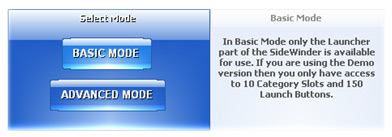
Click on the large button says 'BASIC MODE' or 'ADVANCED MODE' in order to open the Mode Selection window. Here you will be presented an option to select from the available modes of operation that the SideWinder can function. If you select the "BASIC MODE' then only the launcher part of the SideWinder will function and you may use this mode if you want to save PC memory a little more (Restart SideWinder in 'BASIC MODE' to Free the extra memory used by the 'ADVANCED MODE'). When you select the 'ADVANCED MODE' then all the features of the SideWinder will be active and you have an unlimited access to the advanced features also. Please remember that if you're a Demo user then each Mode will have its own restrictions on usage.