Web Search Tool & Address Bar
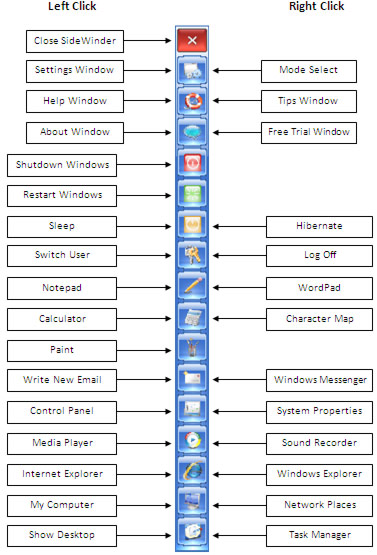
Get quick access to the Web Search Tool and the Address Bar by bringing the Mouse over the "Internet Explorer" button in the Side Bar. Using the Web Search Tool you can instantly search 10 popular websites including major search engines like Google and Yahoo. Just type your search keyword in the combo box and press the Enter Key, or you can click the Website Icon to start the search. Click the expand arrow to select a search engine or press 'Up' or 'Down' keys while at the combo box in order to change the search engines one by one.
Enter a URL inside the Address Bar and press the Enter Key or hit the 'Go' button to go to the website immediately. If you want a certain Web Page or an entire Website to be translated, enter the URL in the Address Bar and select a target language from the combo box next to the 'Go' button and then click the button. To view the Website in its original language select "None" and click the 'Go' button.
Volume Control
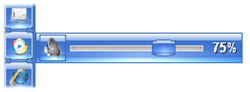
Bring the Mouse over the "Media Player" button at the Side Bar in order to open the Volume Control. Slide the Knob to adjust the main volume of the PC. Hit the Mute button to mute or hit again to un-mute the volume. The Volume Control will adjust the Master Volume in Windows XP and older versions but in Windows Vista and 7 it will only change the application's Volume. You can also use the Mouse Wheel to change the Volume easily by placing the Mouse cursor on the "Media Player" button.
Note Tool
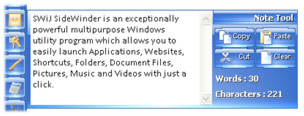
Bring the Mouse over the "Notepad" button at the Side Bar to open the Note Tool. Use the Note Tool to preserve your temporary texts and notes to use them later. The tool can also be used as an extended alternative to the Windows Clipboard. You may drag the Note Tool by pressing the Mouse Down on the caption to any location on your screen and hide the Tool by Double Clicking on it. Also get instant Character and Word counts while you type.
Dictionary & Translator
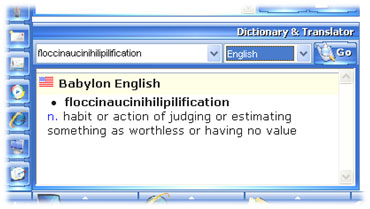
Bring the Mouse over the "Notepad" button at the Side Bar to open the Dictionary & Translator along with the Note Tool. Enter the word you want to get the meaning or translation in the first combo box and select the target language in the second combo box and then hit the 'Go' button to begin displaying the results. The default language is selected as English and you may select any of the 17 languages in order to get the translations for your word or phrase. Please remember to be online when using the Dictionary. You can also drag the Dictionary & Translator Tool by pressing the Mouse down on the caption to any location on your screen and hide the Tool by Double Clicking on it.
My PC Tool
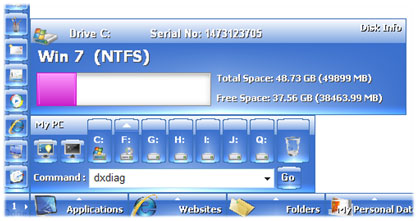
Bring the Mouse over the "My Computer" button at the Side Bar to open the My PC Tool. The tool will display some additional and useful functions for your PC and line up the available Drives and Disks on your machine for quick and easy access. You can immediately turn off the Monitor display by clicking on the "Turn Off Monitor" button. The display can be turned back on by moving the Mouse or pressing the keys on the Keyboard. You can instantly open the DOS Command Prompt by clicking on the "Command Prompt" button.
The Logical & Physical Drives will be shown in alphabetical order and when you bring the Mouse over a particular Drive its Disk Info window will show up. In that the Name of the Volume, File Structure, Total Space, Free Space and the Serial Number will be displayed. If the Drive is an Optical or Floppy Drive and the Drive is empty then the Disk Info window will not show up. If you click on the Drive Button, SideWinder will open the contents of the Drive in Explorer for you. If you Right Click on the Button the Properties System window of the Device or Drive will open. There will be an Arrow shown on top of the Drive Button if it is a CD/DVD/Blu-Ray Drive or a Removable USB Drive. You can Open or Close the Door of the Optical Drive by clicking the Arrow Part of the Button and quickly and safely Eject the Removable USB Device such as USB Pen Drives or USB Hard Drives.
Also in addition to the Drives, at the edge there is a Button with Recycle Bin icon and it shows whether the Bin is Empty, Has Items, or Full when you bring the Mouse over it. Click on it to open the Recycle Bin Folder or click on the Arrow to Empty the Recycle Bin.
At the bottom of the My PC Tool there is a combo box which is pre-loaded with useful Run Commands for the Windows Operating System. You can also type in any other standard Commands inside the combo box and click the 'Go' button to execute them as you would with the standard Windows Run Tool.
Currency Converter
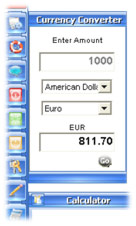
Bring the Mouse over the "Calculator" button at the Side Bar in order to open the Currency Converter Tool. The Currency Converter supports in between conversion of all major International Currencies and you need to be online in order to properly run the Converter with the latest Currency Exchange Rates. Enter the amount in plain numeric value in the first text box to be converted and select the From and To Currencies from the combo boxes below. Then click the 'Go' button to get the upto-date converted amount immediately.
Audio & Video Players
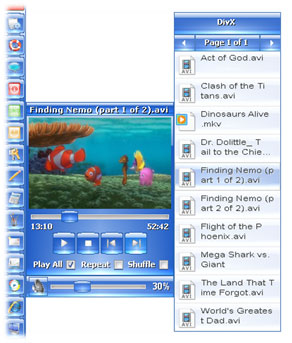
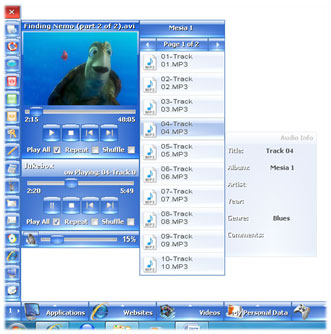
If you already have started playing an Audio or a Video using the SideWinder's built-in players then when you bring the Mouse over the "Media Player" button at the Side Bar it will open the Volume Control with the Players on top of the other as shown below. You can continue to play the Audio or Video as you do normally with the players.
Scientific String Calculator (SSC)
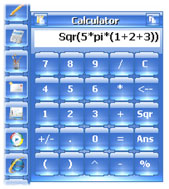
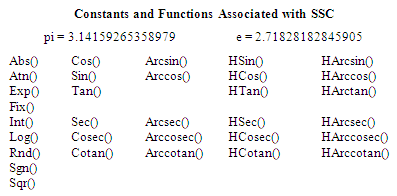
Bring the Mouse over the "Calculator" button at the Side Bar in order to open the built-in Scientific String Calculator. The SSC is a convenient and a powerful tool to perform long length string calculations and the evaluation of complex scientific formulae. Use the predefined buttons on the Calculator or type your equations inside the display text box and then hit the 'Enter' key to get the results. Double Click on the Caption Bar to hide the SSC or drag it by holding the Mouse down on the Caption Bar. Click the 'Paste' or 'Copy' mini buttons to perform Clipboard functions. Below is a list of constants and functions which can be used in the SSC.
Shutdown Timer
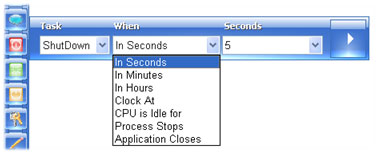
Bring the Mouse over the "Shutdown" button at the Side Bar to open the built-in Shutdown Timer Utility. Before you start the timer first select the Task, and then select the Mode, and finally select the Target from the combo boxes. Then click the 'Start 'button to begin the timer. Click it again to stop the timer.
Switch Window Utility
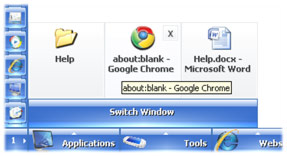
Bring the Mouse over the "Show Desktop" button at the Side Bar to display the Switch Window Utility. To switch to an opened window just move the Mouse over that window's Icon and remove the Mouse upwards from its block. Left Click on its Icon to Maximize or Restore the window and Right Click on it to Minimize the window. Double Click on the Switch Window bar to Maximize all opened windows and Right Click to Minimize all. Click on the Close button to close that particular window easily. If a Window has several Tabs like a Web Browser, you can cycle between the Internal Tabs by clicking the MouseWheel button once on that particular Icon and rotating the Wheel Up or Down.